
nvm-sh Install
nvm-sh for Linux/MacOS/WSL Installation
This guide provides step-by-step instructions on how to install NVM on Linux / Ubuntu / Mac.
Using the Installation Script
Open the terminal and run one of the following commands:
bash
curl -o- https://raw.githubusercontent.com/nvm-sh/nvm/v0.39.3/install.sh | bashor:
bash
wget -qO- https://raw.githubusercontent.com/nvm-sh/nvm/v0.39.3/install.sh | bash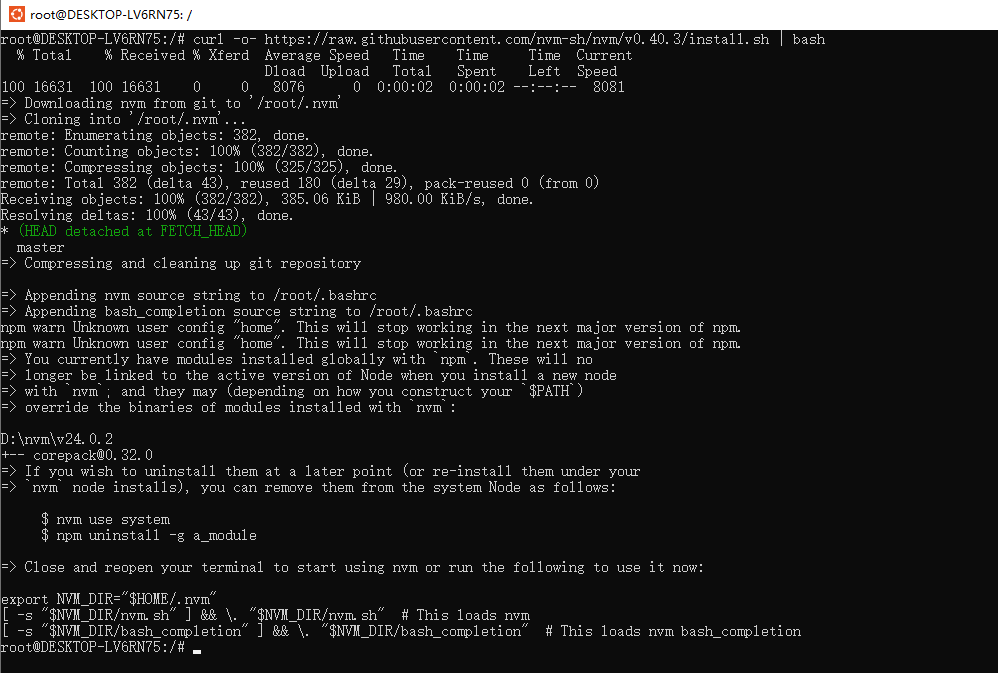
The installation script will clone the NVM repository to the ~/.nvm directory and try to add the following snippet to the correct configuration file (~/.bash_profile, ~/.zshrc, ~/.profile, or ~/.bashrc).
bash
export NVM_DIR="$HOME/.nvm"
[ -s "$NVM_DIR/nvm.sh" ] && \. "$NVM_DIR/nvm.sh"  # Load NVM
[ -s "$NVM_DIR/bash_completion" ] && \. "$NVM_DIR/bash_completion"  # Load NVM bash completion
Note
On Linux, after running the installation script, if you get nvm: command not found or no feedback from the terminal after typing command -v nvm, simply close the current terminal, open a new terminal, and try again. Or, you can run the following commands for different shells:
bash
# bash:
source ~/.bashrc

# zsh:
source ~/.zshrc

#ksh:
. ~/.profile
Manual Installation
If you prefer manual installation, follow these steps:
- Unduh arsip kode sumber NVM:
bash
wget https://github.com/nvm-sh/nvm/archive/refs/tags/v0.39.3.tar.gz- Buat direktori NVM dan ekstrak:
bash
mkdir -p ~/.nvm
tar -zxvf v0.39.3.tar.gz -C ~/.nvm- Konfigurasikan variabel lingkungan, edit file
~/.bashrc:
bash
vim ~/.bashrc- Tambahkan di akhir file:
bash
export NVM_DIR="$HOME/.nvm/nvm-0.39.3"
[ -s "$NVM_DIR/nvm.sh" ] && \. "$NVM_DIR/nvm.sh"  # Muat NVM
[ -s "$NVM_DIR/bash_completion" ] && \. "$NVM_DIR/bash_completion" # Muat penyelesaian bash NVM- Terapkan konfigurasi:
bash
source ~/.bashrcVerifikasi Instalasi
Setelah instalasi selesai, tutup dan buka kembali terminal, atau jalankan source ~/.bashrc, lalu masukkan perintah berikut untuk memverifikasi instalasi:
bash
nvm --versionJika nomor versi NVM ditampilkan, instalasi berhasil.
Solusi Masalah Izin (MacOS)
Saat menggunakan Node.js, terutama saat menginstal paket global dengan npm, karena pembatasan keamanan sistem MacOS, masalah izin instalasi atau munculnya Command not found setelah instalasi adalah hal yang umum.
Menggunakan NVM untuk mengelola Node.js dapat secara efektif menyelesaikan masalah izin ini, karena Node.js yang diinstal oleh NVM terletak di direktori pengguna dan tidak memerlukan hak administrator.
Mencopot Pemasangan nvm
Mencopot Pemasangan Manual Untuk mencopot pemasangan nvm secara manual, ikuti langkah-langkah berikut:
Pertama, gunakan nvm unload untuk menghapus perintah nvm dari sesi terminal Anda, dan hapus direktori instalasi:
bash
$ nvm_dir="${NVM_DIR:-~/.nvm}"
$ nvm unload
$ rm -rf "$nvm_dir"
Edit ~/.bashrc (atau file konfigurasi shell lainnya), dan hapus baris berikut:
bash
export NVM_DIR="$HOME/.nvm"
[ -s "$NVM_DIR/nvm.sh" ] && \. "$NVM_DIR/nvm.sh" # This loads nvm
[[ -r $NVM_DIR/bash_completion ]] && \. $NVM_DIR/bash_completion